Running out of phone storage? Learn simple ways to free up storage by removing unnecessary files, apps, downloads, and cached data.
How to Free Up Storage on Your Phone
If your phone says “Storage Almost Full” or you cannot download new apps, photos, or files, you can usually free up space without deleting important data.
Start with the steps below and check your available storage after each one.
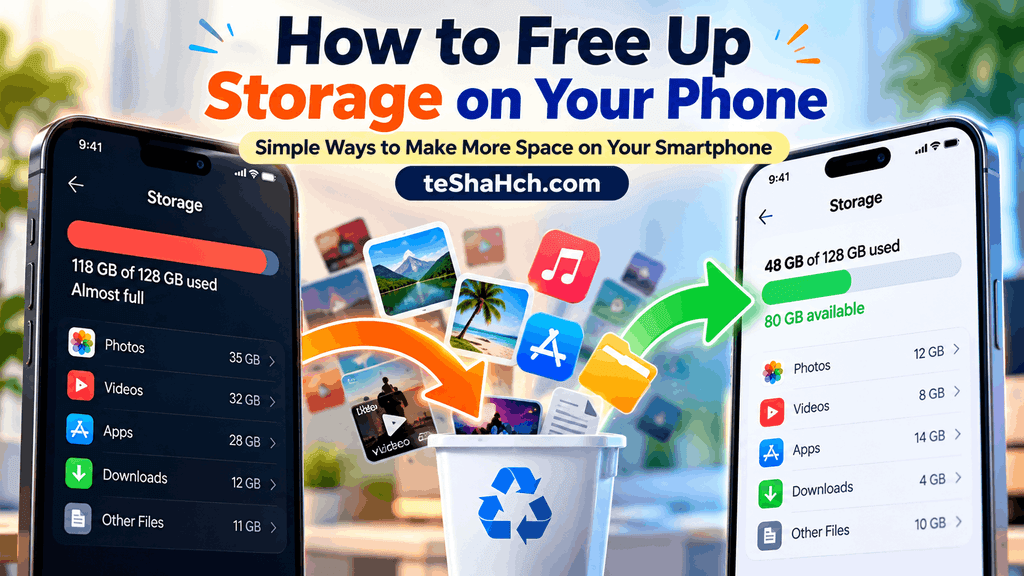
1. Check What Is Using Your Storage
Before deleting anything, find out what is taking up the most space.
Look for categories such as:
- Photos and videos
- Apps
- Downloads
- Documents
- Music
- Cached or temporary files
On Android: Open Settings → Storage. The exact menu can vary by phone manufacturer.
On iPhone: Open Settings → General → iPhone Storage.
This helps you focus on the files that are actually consuming your storage.
2. Delete Unnecessary Photos and Videos
Photos and videos can quickly use several gigabytes of storage.
Review your gallery and remove:
- Duplicate photos
- Blurry pictures
- Accidental screenshots
- Old screen recordings
- Unwanted videos
- Downloaded media you no longer need
Before deleting important photos, make sure you have backed them up if you want to keep them.
3. Remove Unused Apps
Check your installed apps and remove apps you no longer use.
Old games and large apps can take up significant storage even if you rarely open them.
On iPhone, iPhone Storage can show how much space each app uses.
On Android, you can review installed apps through your phone’s Settings → Apps section.
4. Clean Up Downloads
Your Downloads folder can contain old:
- PDFs
- Videos
- Images
- ZIP files
- Documents
- Installation files
Open your phone’s file manager and review the Downloads folder.
Delete files you no longer need.
5. Clear App Cache on Android
Some Android apps store temporary files called cache.
If a particular app is using a large amount of cached data, clearing its cache can sometimes free up space.
Usually, you can find the option under:
Settings → Apps → [App Name] → Storage → Clear Cache
Menu names can vary between Android phones.
Important: Avoid selecting Clear Data unless you understand what it does, because it can remove app settings or locally stored information.
On iPhone, iOS manages app cache differently, so you may need to use the app’s own storage options or offload/delete the app when appropriate.
6. Delete Large Files
Use your phone’s storage or file-management tools to find unusually large files.
Look for:
- Long videos
- Large downloaded files
- Offline content
- Old ZIP files
- Large documents
Removing a few large files can sometimes free more space than deleting dozens of small files.
7. Review WhatsApp and Other Messaging Media
Messaging apps can accumulate a lot of photos, videos, GIFs, documents, and voice files.
Check the storage management section of apps such as WhatsApp and remove media you no longer need.
Before deleting anything, check whether the files are important or backed up elsewhere.
8. Move Photos and Videos to Cloud Storage
If photos and videos are taking up most of your storage, consider backing them up to a cloud storage service and then removing local copies that you no longer need.
This can be particularly useful if you frequently take photos or record videos.
Do not delete local files until you have confirmed that the backup has completed successfully.
9. Remove Offline Downloads
Streaming and social apps can store content offline.
Check apps for downloaded:
- Movies
- TV shows
- Music
- Podcasts
- Maps
- Videos
Delete offline content that you no longer need.
You can download it again later if the service supports offline access.
10. Empty the Recently Deleted or Trash Folder
Deleting a photo or file does not always remove it immediately.
Many phones and apps keep deleted items in a Recently Deleted or Trash folder for a period of time.
If you are sure you no longer need those files, emptying the folder can recover additional storage.
11. Restart Your Phone
After cleaning up storage, restart your phone.
This can help the system refresh its storage information and complete temporary cleanup processes.
What Should You Delete First?
If your storage is almost completely full, start with the easiest and safest items:
- Unwanted videos
- Duplicate or blurry photos
- Old downloads
- Unused apps
- Offline videos and music
- Unnecessary messaging media
- Large files you no longer need
Avoid deleting system files or unfamiliar files just because they look large.
How Much Free Storage Should Your Phone Have?
There is no single amount that every phone requires, but keeping some free space is useful for app updates, temporary files, photos, videos, and normal system operations.
If your phone is constantly close to full, consider regularly reviewing large files and unused apps rather than waiting until storage reaches 100%.
Final Takeaway
The quickest way to free up phone storage is to find what’s using the most space first.
Start with large videos and photos, unused apps, Downloads, offline content, and unnecessary messaging media. If you use cloud backup, verify that important files are safely backed up before deleting their local copies.
You do not need to delete everything from your phone—remove the files and apps you no longer need, and keep the important ones backed up.
FAQ
How do I free up storage on my phone quickly?
Start by checking which categories use the most storage. Then remove large unwanted videos, duplicate photos, unused apps, old downloads, and offline content.
What is taking up so much storage on my phone?
Photos, videos, apps, downloads, messaging media, and offline content are common causes. Check your phone’s built-in storage manager to identify the biggest categories.
Does clearing cache free up phone storage?
On Android, clearing an app’s cache can sometimes free up temporary storage. However, the amount recovered varies by app. Do not confuse Clear Cache with Clear Data.
How can I free up storage without deleting photos?
You can back up photos to a cloud service or another storage device and then remove verified local copies. Always confirm that the backup is complete before deleting the originals.
Why is my phone storage full even after deleting files?
Deleted files may still be stored in a Recently Deleted or Trash folder. Some apps may also retain cached or offline content.
Should I delete unused apps to free up storage?
Yes. Removing apps you no longer use can recover storage, especially if they are large games or media-heavy applications.
How do I find large files on my phone?
Use your phone’s built-in storage manager or file-management app. These tools can usually show which apps, files, photos, and videos are consuming the most space.